Bonding: combining internet connections
Bonding lets you use internet connections available on a device for a broadcast in Souv Live. To combine connections, make two or more networks available, such as Wi-Fi and mobile data. The result depends on the conditions of each network and the settings you choose.
Before you start
- Use a compatible Souv mobile app, version 2.5.0 or later, with the device registered to your account.
- Keep the device online and make the networks you want to use available.
- Check that the account's license includes bonding and that a slot is available under Active bondings.
- Your signed-in account needs permission to manage devices in Live.
1. Enable bonding for the device
In the Souv Live Dashboard, go to Settings → Devices to view the device list.
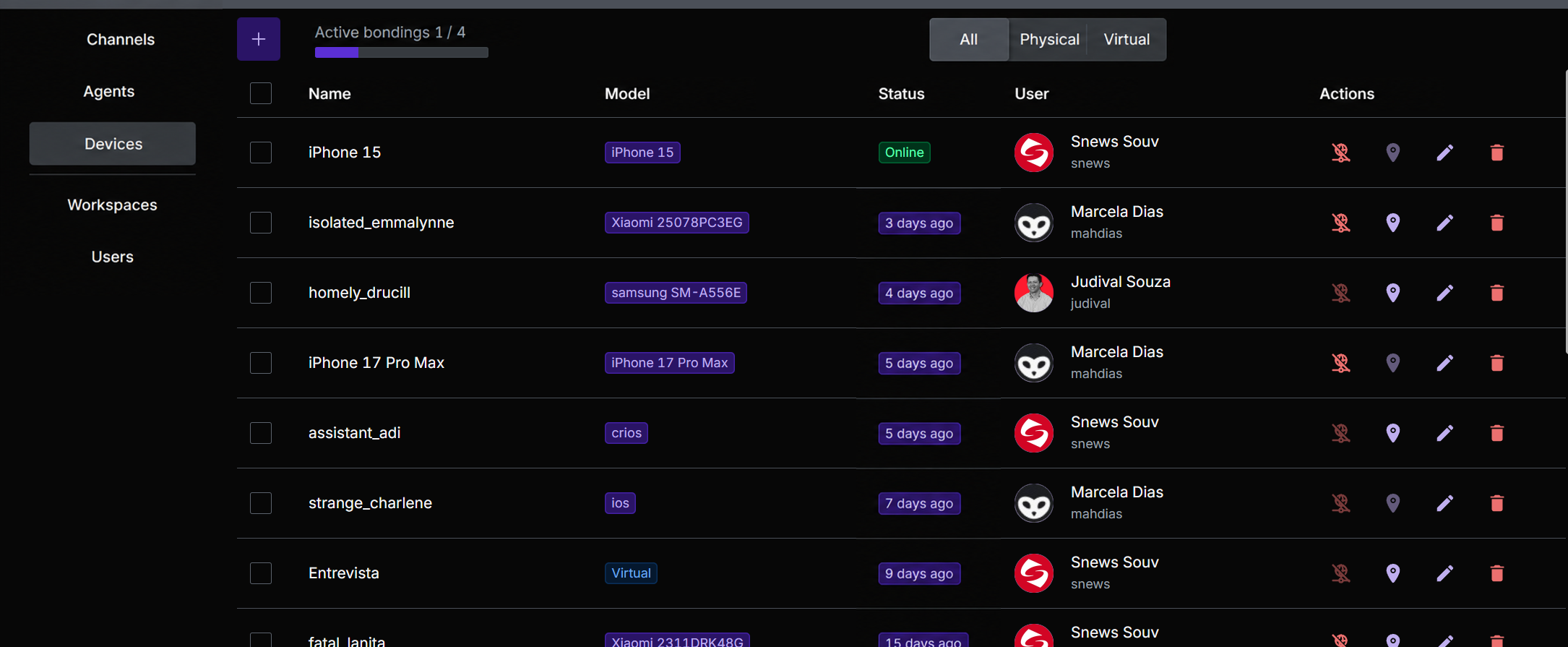
- Find the device you want to use in the table and check that its status is Online.
- In the Actions column, hover over the network button and check for the Enable bonding tooltip.
- Click the button and wait for it to update. Activation is saved immediately; you do not need to click Save.

In the screenshot above, the red marking highlights the Online status; the yellow marking highlights the network button in the Actions column.
The button turns green and its tooltip changes to Disable bonding. The Active bondings counter shows the number of enabled devices and the account limit. The green button and the counter confirm that bonding is enabled, not that a bonding connection has been established.
To free a slot, click Disable bonding for a device that no longer needs the feature.
2. Open the connections on Home
Return to Live's Home and find the device card. With the device online, click the network indicator in the card header: it may display a Wi-Fi icon, mobile data, or several network icons.
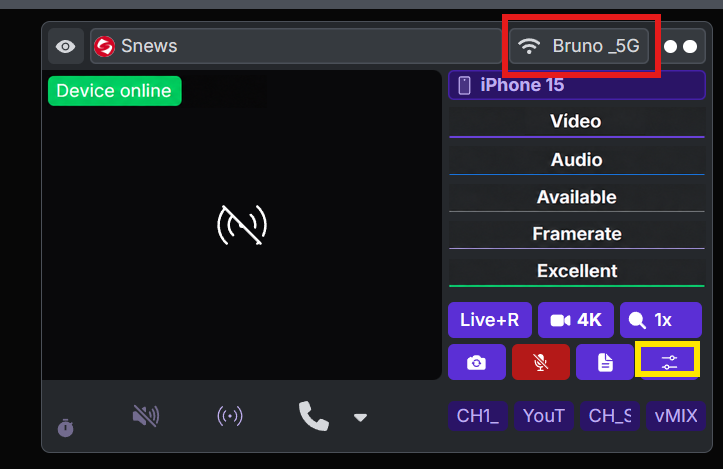
In the screenshot, the red marking highlights the Wi-Fi indicator, which opens the Bonding statistics floating panel. The indicator's appearance depends on the available and connected networks.
You do not need to start a video broadcast to monitor connections in this panel. Keep the mobile app open and the device online.
3. Choose the networks and mode
- On the device card, click the settings icon with sliders, highlighted in yellow in the previous screenshot, to open Advanced settings.
- In the Bonding section, check the networks you want to use under Adapters. Select two or more to combine connections.
- Under Bonding mode, choose Aggregate or Redundant.
- Click Save to apply the settings.
The Bonding section appears when the feature is enabled for the device. After saving, return to the network indicator to check each connection's status.
4. Check status and traffic
In the Bonding statistics panel, check:
- Connected / Disconnected at the top: Connected means that at least one network is connected.
- Each listed network: to confirm that two or more networks are connected, look for two or more rows marked Connected.
- Latency in ms, when available: lets you monitor the delay of each connection.
- Traffic charts: each connection has one chart with two series, outgoing (Send) and incoming (Receive), over time. These are traffic measurements, not a test of the internet connection's maximum speed.
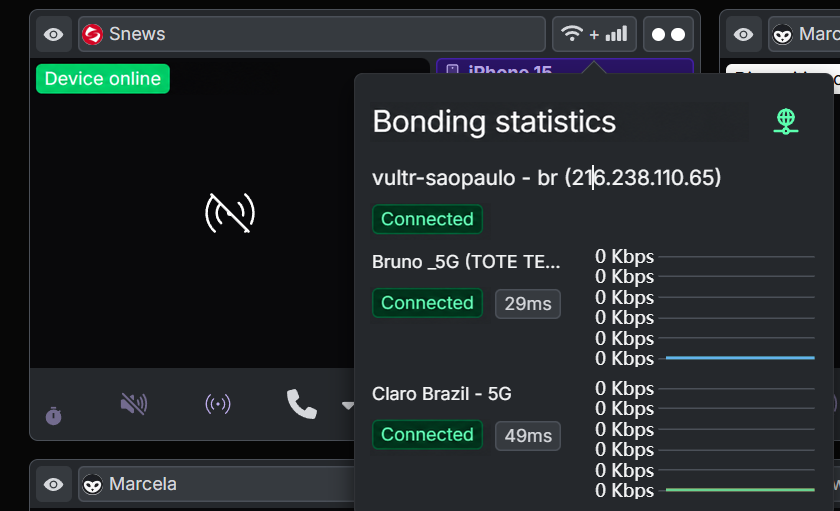
In the screenshot, both networks are connected, with latencies of 29 ms and 49 ms. These are example values. The charts show 0 Kbps even while the networks are connected: this value alone does not indicate a disconnection. Check each network's status to verify its connection.
Before and during the broadcast, check the rows for the networks you selected under Adapters. Having two networks available on the device does not, by itself, confirm that both are connected to bonding.
If something is missing or does not connect
- Activation button disabled: update the mobile app to version 2.5.0 or later.
- Unable to enable bonding: check the license's bonding availability and limit, as well as your permission to manage devices in Live.
- Network indicator missing from the card: check that the device is online.
- Only one network connected: check that two or more networks are available on the device and selected under Adapters. Save your changes and check the statistics again.
- Bonding enabled but disconnected: allow the panel to update and check the device's internet connection.
For other device options, see Device Management and Advanced Settings.